Import rows from a spreadsheet
Bring in duties you already have as pasted rows or a CSV file, and review them before they are added.
Steps
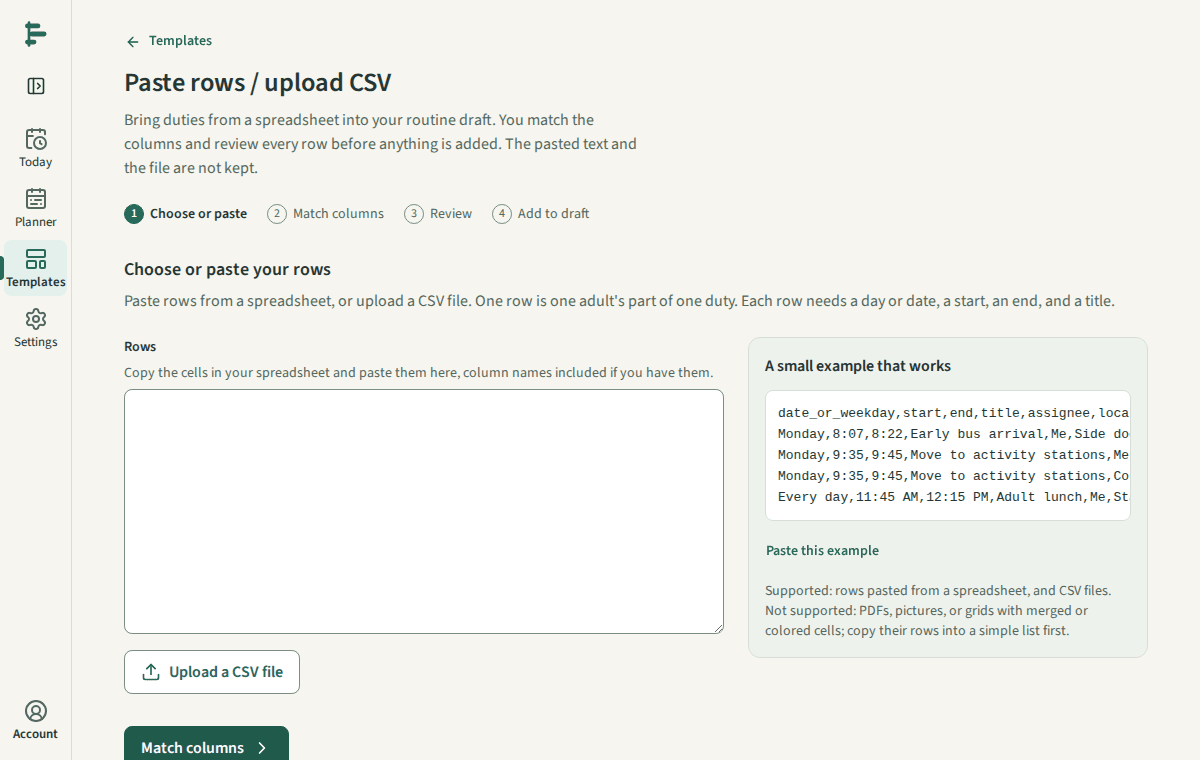
In Templates or the Planner, choose Paste rows / upload CSV. Paste rows copied from your spreadsheet, or upload a CSV file.
Match columns: tell Para Schedule which column holds the day or date, the start, the end, and the title. Adult, place, group, and role are optional.
Review every row. Rows with a problem are listed with the reason; nothing is dropped without you seeing it.
Add the rows. They go into your routine draft, and rows with an exact date become changes for that date only.
Good to know
- One row is one adult's part of one duty.
- Colored grids with merged cells, PDFs, and photos are not converted. Save the rows you need as plain rows or CSV first.
- The pasted text and the file are read in your browser and are not kept after the import.