Excel, Google Sheets, or a para schedule builder?
Plenty of para schedules live in a spreadsheet, and for many people that is the right tool. This guide is an honest comparison: when a spreadsheet in Excel or Google Sheets is the better choice, what a maintained schedule builder changes, and, if you decide to move, exactly which columns Para Schedule can read from the rows you already have.
One thing first: Para Schedule does not connect to Excel or Google Sheets and does not open spreadsheet files. It reads rows you copy and paste, or a CSV file you save from the spreadsheet. Excel is a Microsoft product and Google Sheets is a Google product; Para Schedule is not affiliated with either.
By the Para Schedule team · updated
When a spreadsheet is the right choice
A spreadsheet is a good home for a para schedule when these matter most to you:
- Familiar editing. Everyone on the team already knows how to change a cell, and nobody needs to learn anything new before Monday.
- Local files. The file sits where your school keeps its other files, shared the way your team already shares things.
- Your own layout. Colors, merged cells, one column per adult, a layout the whole building recognizes. A spreadsheet lets you draw exactly the page you want.
- A plan that rarely changes. If the week is the same all year and one printed page covers it, there is little to maintain.
Many spreadsheet templates are carefully made, and some add formulas that count adults or flag gaps. If yours works, keep it.
What a maintained builder changes
The trouble with a spreadsheet usually starts after it is finished: the Tuesday that is different, the colleague who needs only their own part, the copy printed last week that is still on the clipboard. A builder like Para Schedule is meant for that maintenance.
- Linked views. Duties are entered once. Each adult's day, the week, the classroom team board and every printout are read from the same records, so changing a room changes it everywhere.
- Explicit date changes. A change for one date is saved as that date's change, and the regular week is left alone. There is no copied tab per week to fall out of step.
- Reusable alternatives. With Plus, a different day that returns, such as an assembly schedule, is saved once and chosen for the dates that use it.
- Consistent printouts. Every copy names its date, its version number and when it was made, and a long day continues on the next page or card instead of shrinking the text.
- Checks on what you entered. The same adult in two places at once, a duty during an adult's own break, and a duty short of the adults it says it needs are pointed out with exact times.
What it does not change: the layout is Para Schedule's, not yours to draw freely, and no tool fixes a day that simply has too few adults. Software records and checks a plan; people still make it. The absence and coverage guide shows what that looks like on a hard day.
The columns Para Schedule reads
If you move, you do not have to retype your spreadsheet. The importer reads plain rows where one row is one adult's part of one duty. Headers are matched automatically where they are recognized, and you confirm or change every match before any row is read. These are all the columns it understands:
How values are read
- A row with a weekday or an every-day word goes into your routine draft. A row with an exact date becomes a change for that date only.
- A date such as 10/11 could be October 11 or 10 November, so you choose the date order instead of Para Schedule guessing. A time between 1:00 and 6:59 with no AM or PM needs one, or a choice of how to read it.
- Types are Instructional support, Transition, Supervision, Classroom task, Adult break, Assigned elsewhere, Other. A bare “break” is not accepted, because your own break and a student's supervised break are different things.
- In the adult column, Me, myself or self means you. A blank cell is an open slot, unless you choose to read blanks as you. A colleague's label that is not on your schedule yet is added only if you use the import.
A small example that works
This is the example the import screen offers, with fictional labels. The two Move to activity stations rows share the duty key move-1, so they become one shared duty with two adults, each with their own role.
date_or_weekday,start,end,title,assignee,location,group_label,role,type,duty_key
Monday,8:07,8:22,Early bus arrival,Me,Side door,,Meet the early bus,transition,
Monday,9:35,9:45,Move to activity stations,Me,Station A,Group B,Prepare the station,transition,move-1
Monday,9:35,9:45,Move to activity stations,Colleague 1,Station A,Group B,Escort Group B,transition,move-1
Every day,11:45 AM,12:15 PM,Adult lunch,Me,Staff room,,,adult break,
Moving rows out of Excel or Google Sheets
Make a plain list. One header row, then one row per adult per duty. A grid with one column per adult, merged cells or color-only meaning has to become rows first; color is not read.
Copy or save. Either copy the rows and paste them, or save the sheet as a CSV file: in Excel, Save As with a CSV file type; in Google Sheets, Download as comma-separated values. The importer accepts .csv, .tsv and .txt files, not .xlsx files, PDFs or photos.
Match columns. In Templates or the Planner, choose Paste rows / upload CSV, then confirm which column is which.
Review every row. Rows with a problem are listed with the reason, and nothing is dropped without you seeing it. The rows go into a draft; nothing becomes your current copy until you choose Use this version.
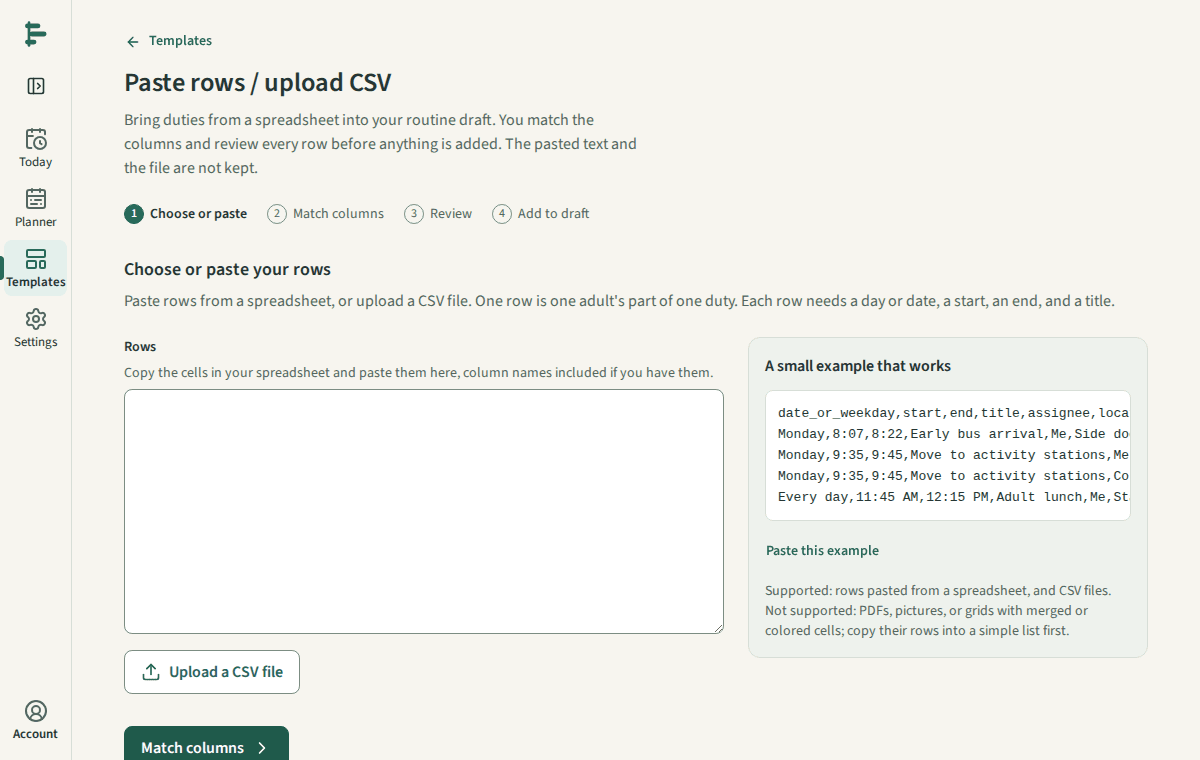
The task article shows each screen: import rows from a spreadsheet. The pasted text and the file are read in your browser and are not kept after the import. Going the other way, you can export a CSV from Para Schedule at any time; its headers match these columns, so it opens in a spreadsheet and can be pasted back in.
Practical questions
Can I import my .xlsx file or a Google Sheets link directly?
No. Save the sheet as CSV, or copy the rows and paste them. Para Schedule has no connection to either service and does not watch a shared sheet for changes.
Is there a blank spreadsheet template I can download?
The import screen offers an example CSV of the fictional Maple Room Monday in exactly these columns. Open it in a spreadsheet to see the shape, replace the rows with your own, and import it back.
Can I keep using my spreadsheet and Para Schedule side by side?
You can, but they will not stay in step on their own: an edit in one does not reach the other. Most people pick one as the copy they maintain and treat the other as an export or a printout.